Where and how to display your QR code in-store so people actually scan it
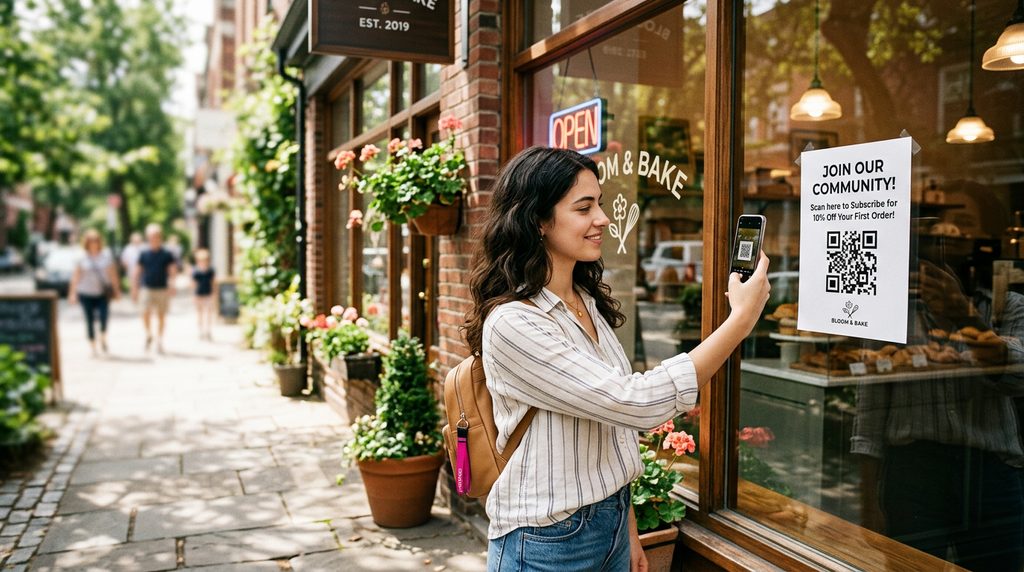
A QR code is useless if nobody scans it. And the secret isn't the code — it's where you put it and what you write next to it. Here's how to actually get your code scanned. (Need to create one first? See how to make a free QR code.)
The 4 best spots
- The window — visible from the street, working 24/7 even when you're closed. Eye level, facing out.
- The counter / till — right at the moment of payment, when the customer is already looking down and waiting.
- Tables / waiting area — idle time is scan time. A small sign on each table or by the seats.
- Receipt, bag or flyer — a take-home code so they find you again later.
The 3 conditions for a scan
Every scanned code meets all three. Miss one and the code is dead weight:
- Visible — at eye level, not down by the floor or above the door.
- Big enough — the further the viewer, the bigger the code (a window code seen from the pavement needs to be far larger than one on a table).
- A reason to scan — see below.
What to write next to it
Never label it “QR code” — that's not a reason to act. Write the payoff: “Scan for our deals,” “Scan for the menu,” “Scan to book,” “Scan to leave a review.” One short line turns a curiosity into a scan. The same logic applies to your on-page buttons.
Mistakes that kill scans
- Too small, or stuck too high / too low.
- Behind glass with glare, or under a glossy laminate in direct sun.
- No call to action next to it.
- A code that points to a dead or outdated link.
Print a ready-made poster in one click
You don't need a designer. From your SmartShopAgent dashboard, the “Print my poster” button generates an A4 poster with your name, your QR code and a call to action you can customise — ready to put in the window or on the table. And because the code points to your page, you can track exactly how many people scan it.
Get your scannable poster — free
Create your page, print your A4 poster with QR code and call to action, and put it where customers will actually scan it.
Create my page for freeFrequently asked questions
What's the minimum size for a QR code?
Simple rule: the further away it's scanned, the bigger it must be. On a counter (30 cm), 2–3 cm is enough. In a window, seen from the pavement, aim for at least 8–10 cm. When in doubt, go bigger: a too-small QR won't scan, a large one bothers no one.
Does a QR stuck behind the window work?
Yes, on three conditions: at eye level, big enough, and no harsh glare (avoid direct sun and glossy film). Stick it facing outward and test it yourself from the pavement before leaving it up.
Should I write something next to the QR?
Essential. A bare QR doesn't inspire action. Add a reason to scan: “Scan for our deals,” “for our menu,” “to book.” The call to action makes the difference, not the code itself.
How do I know if my QR is actually scanned?
Track scans in your stats: a SmartShopAgent page tells normal visits apart from QR arrivals. If scans don't pick up, it's almost always a size, placement or wording issue — not the code.